

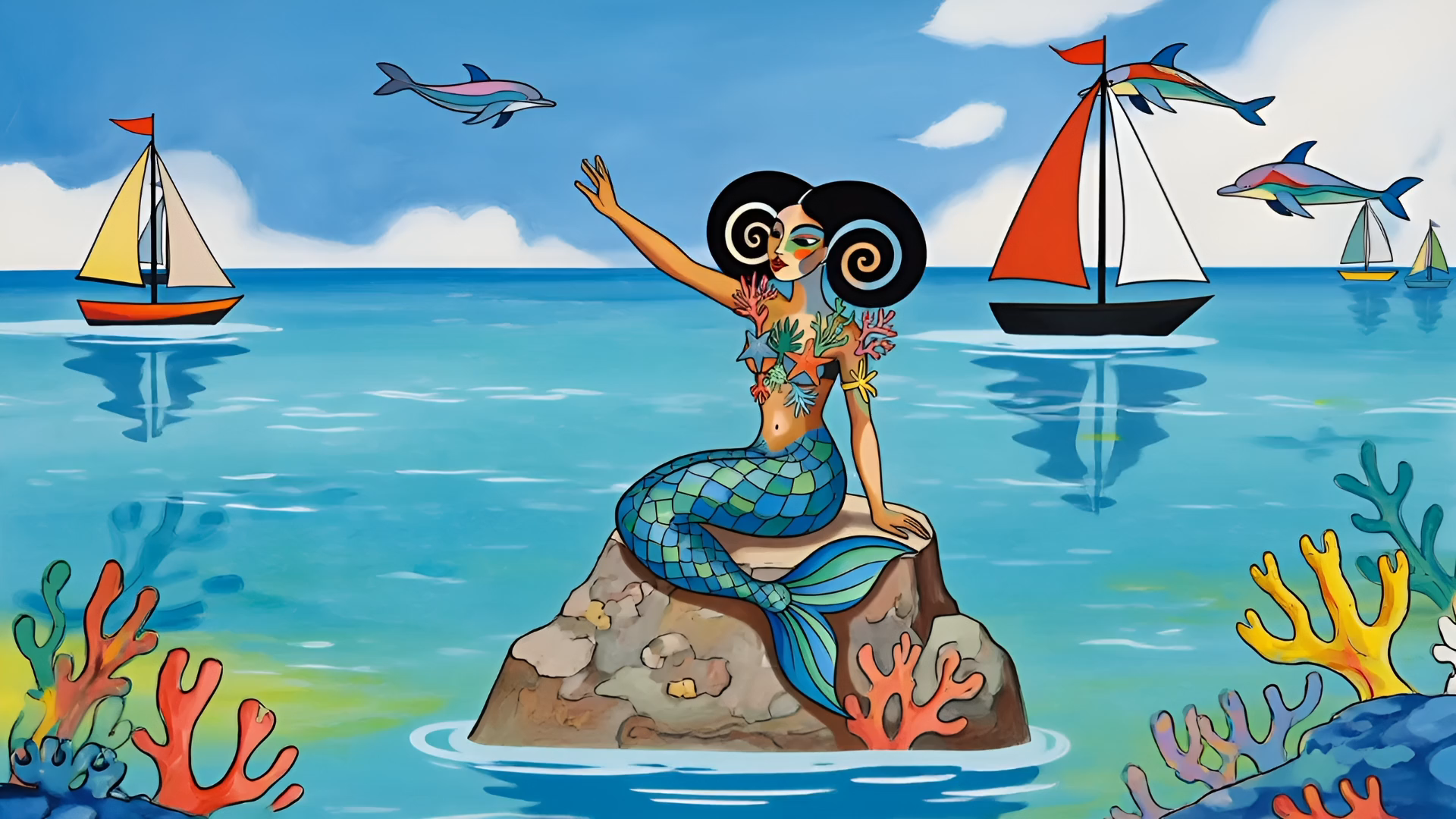
Welcome to Artistycom
The platform that connects AI artists
to collaborate, create together and share.
Artistycom is your space for artistic networking and collaboration.
Whether you're an artist, art professional, event organizer, or simply passionate about art, Artistycom allows you to:
Create your profile
Share your projects and find collaborators
Offer or search for announcements
Discover and organize events
Respond to specific requests
Follow this guide to discover all the platform's features.
1. Log in to your Artistycom account and choose French or English on the homepage.
2. From the Artistycom homepage, click on the tab displaying your username in the top right corner.
3. Open the dropdown menu.
4. Click on "My Profile".
5. You will arrive at your Artistycom account user page.
6. The "My Profiles" tab is selected by default at the bottom in red.
7. Click on "Add".
8. Fill in the fields and activate "Open to collaborations" if you are looking for opportunities.
9. Click on "Create Profile".
10. On this new profile, click on the first tab on the right (eye icon) to add files to your new profile.
11. Click on "Add an item to portfolio"; you can add multiple items.
You can create multiple profiles on the same account for different artistic or other activities!
1. Log in to your Artistycom account and choose French or English on the homepage.
2. From the Artistycom homepage, click on the tab displaying your username in the top right corner.
3. Open the dropdown menu.
4. Click on "My Profile".
5. You will arrive at your Artistycom account user page.
6. Select the "My Projects" tab at the bottom (highlighted in red); it's the third tab from the left.
7. Click on "Add".
8. Fill in the fields, and include a donation link if you are seeking funding.
9. Click on "Create Project".
10. On this new project, click on the first tab on the right (eye icon) to add files to your new profile.
11. Click on "Add an item to portfolio"; you can add multiple items.
Your project will appear on the Explore page for discovery!
Other users will be able to contact you via the integrated messaging system.
1. Log in to your Artistycom account and choose French or English on the homepage.
2. From the Artistycom homepage, click on the tab displaying your username in the top right corner.
3. Open the drop-down menu.
4. Click on "My Profile".
5. You will arrive at your Artistycom account user page.
6. Select the "My Ads" tab at the bottom (highlighted in red); it's the second tab from the left.
7. Choose between EQUIPMENT, ROOMS, RESEARCH, and MEETINGS for your ad.
8. Click on "Add".
9. Fill in the fields.
10. Click on "Create Resource," "Create Search," or "Create Meeting," depending on your choice, on line 7.
11. On this new listing, click on the first tab on the right (eye icon) to add files to your new listing.
12. Click on "Add Item to Portfolio." You can add multiple items.
Your listing will appear on the Explore page, and other users will be able to contact you via the integrated messaging system.
1. Log in to your Artistycom account and choose French or English on the homepage.
2. From the Artistycom homepage, click on the tab displaying your username in the top right corner.
3. Open the drop-down menu.
4. Click on "My Profile".
5. You will arrive at your Artistycom account user page.
6. Select the "My Events" tab at the bottom (highlighted in red); it is the fifth tab from the left.
7. Click on "Add".
8. Fill in the required fields:
9. Enter the title and type of event.
10. Set the dates and times.
11. Add the location (with geolocation).
12. Write an engaging description.
13. Specify the artistic field and tags.
14. Click "Create event".
15. On this new event, click the first tab on the right (eye icon) to add files to your new event.
16. Click "Add item to portfolio"; you can add multiple items.
Your event will appear in the Events section with map, list, and calendar views!
Create a request from your dashboard
Clearly explain your need
Mark as "Urgent" if necessary
Include geolocation if relevant
Add descriptive tags
Professionals will then be able to offer their assistance directly.
Explore the Artistycom platform
Discover profiles, projects, announcements and events near you now
Discover and Connect.
The Explore page is your entry point to discover:
- AI and professional artist profiles
- Ongoing projects and those currently recruiting
- Available announcements
- Active requests
Use the filters by :
- Location : Find what's near you with the interactive map
- Artistic field : Filter by discipline (visual arts, music, theater, etc.)
- Tags : Search by specific keywords
The Events page offers three views:
- Map view : Locate events geographically
- Calendar view : Plan your cultural schedule
- List view : Browse all events
Click "Contact" from any profile, project, or resource.
Write your message in the window that opens.
Logged-in users can chat in real time.
Access all your conversations from /messages.
Receive email notifications for new messages.
Your profiles, projects, resources, and events are public.
Only active content is visible in the Explore section.
You can temporarily disable your content.
Messages are private between participants.
Your email address remains confidential.
Ready to get started?
Create your free account and join the artistic community
Need help ?
- Contact us using the contact form
- Follow us on social media for updates.
Artistycom is constantly evolving. We welcome your suggestions to improve the platform!